
Azure AD (AAD) Setup
-
Sign into your Azure portal as an administrator.
-
Browse to Microsoft ID Entra > Security > Authentication methods > FIDO2 Security Key (Preview).
-
Under the method FIDO2 Security Key, set the following options and save the configuration:
-
Enable - Yes or No.
-
Target - All users or Select users.
-
Enforce attestation – Set to No.
-
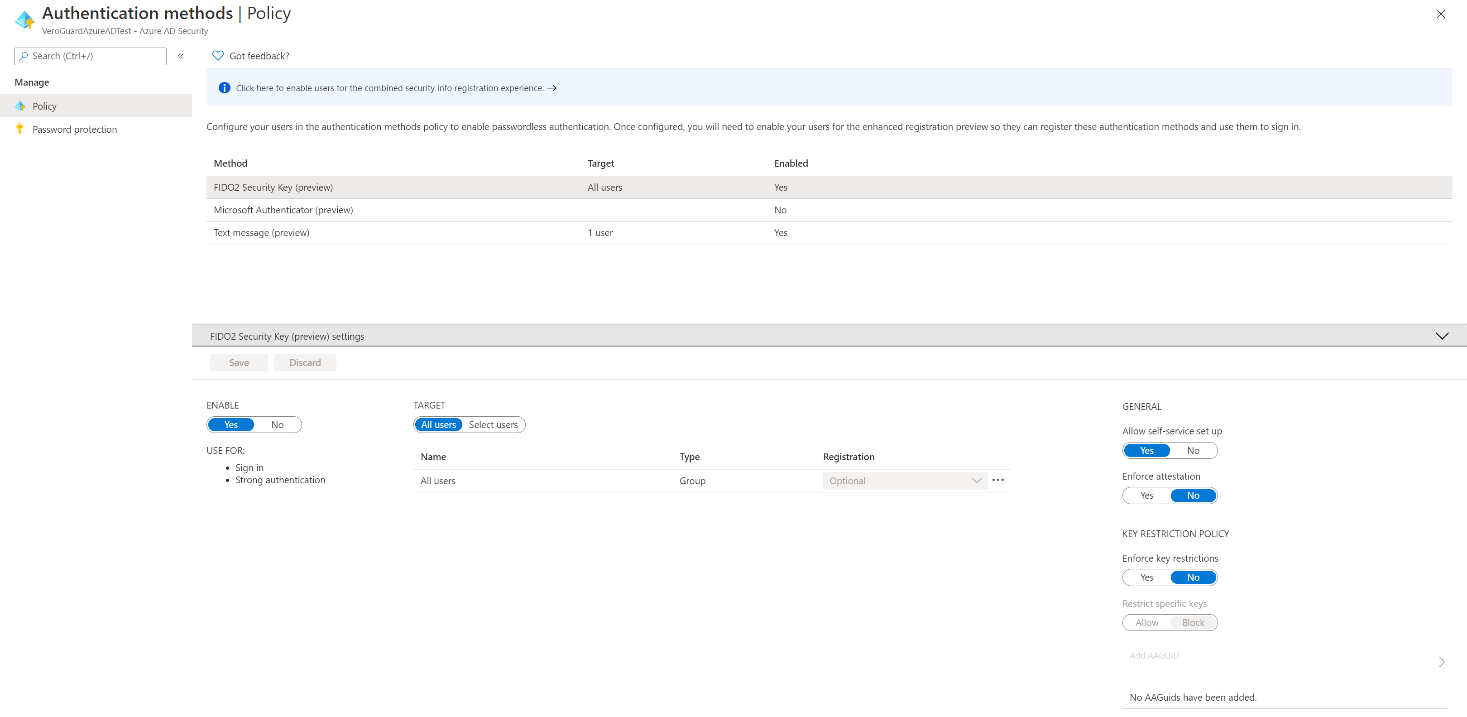
Entra Azure AD setup screen
Prepare End User Devices
Setting up User Devices
End user devices require the latest Microsoft operating system and Keyek’s Keyek Companion Service. If the device you are preparing does not have Bluetooth, please install the USB BT adaptor provided with the Keyek Card when completing end user set-up.
Update all Devices to 20H2 (minimum)
Hybrid Azure AD joined devices must run Windows 10 version 2004 or newer.
Keyek Companion Service
Run the Keyek Companion installer package which will set the service to run in the background, enabling the Keyek Card to securely communicate with Keyek via the PC’s Bluetooth connection. You can find the installer at Downloads section.
If Windows defender or your Antivirus software shows an alert, please select the option to Install anyway.
The Keyek Companion installer will enable security keys for Windows sign-in as described in the Microsoft technical articles by adding the following key to the registry during installation:
Computer\HKEY_LOCAL_MACHINE\SOFTWARE\Microsoft\Policies\PassportForWork\SecurityKey - UseSecurityKeyForSignin – REG_DWORD = 0x00000001
Connecting and Activating Keyek Card
The following sections can be completed by end users; however, certain tasks, such as setting a PIN, must be done by the end user only. Users can refer to the Keyek Card User Guide for assistance. For more information on this, refer to Set your PIN section.
Before a Keyek Card can be used for authentication, it must be paired with a PC. Pairing the Keyek Card follows the same procedure as pairing any other Bluetooth device and requires passcode confirmation for added security.
Activation is the process by which Keyek links the device to the Keyek Platform, ensures its security status, and allows the end user to set their secret PIN.
When you first power on your Keyek Card, it will display the message Ready for Activation below the Keyek Card number.
The Keyek Card keypad is deactivated while it is on the charger. Make sure to remove your Keyek Card from the charger when performing any activities. You can return it to the charger in between if needed.