.svg)
Clear Credentials
Purpose
The Clear AD Credentials function allows administrators to resolve situations where a user’s Active Directory (AD) password becomes out of sync with BoID. While VGS and BoID automatically manage AD password resets based on resource settings such as ChangePassFreq and CanSetPass, they cannot detect when a password is manually reset directly in AD. This mismatch prevents the user from authenticating correctly through BoID.
Symptoms: Users may see error message “Account Error” when attempting to login using a VeroCard.
By using this function, you can clear the stored credentials for the resource, forcing BoID to prompt the user for a fresh password reset on their next login. This provides a faster, more controlled resolution compared to the current workaround of adjusting ChangePassFreq, waiting for a VeroCard login, and then resetting the configuration.
When to Use
Use Clear AD Credentials in the following scenarios:
A user’s AD password has been manually reset in AD and is no longer in sync with BoID.
A user is unable to log in because their stored credentials are invalid or outdated.
You want to avoid temporary workarounds (e.g., setting ChangePassFreq to a shorter interval) and instead apply a direct fix.You need to ensure the user is prompted to reset their password securely on the next login.
Prerequisites
Before you begin:
Ensure the user has an AD resource assigned.
Verify that the resource contains both:
resourceCredentialresourceLastSet
Steps to Clear AD Credentials
From the Home page, click on Users to open the Users - Manage your users from here page displaying the list of existing users.
or
In the Home page, go to the Users option from the left navigational pane and click on it. The Users -
Manage your users from here page opens up displaying the list of existing users.
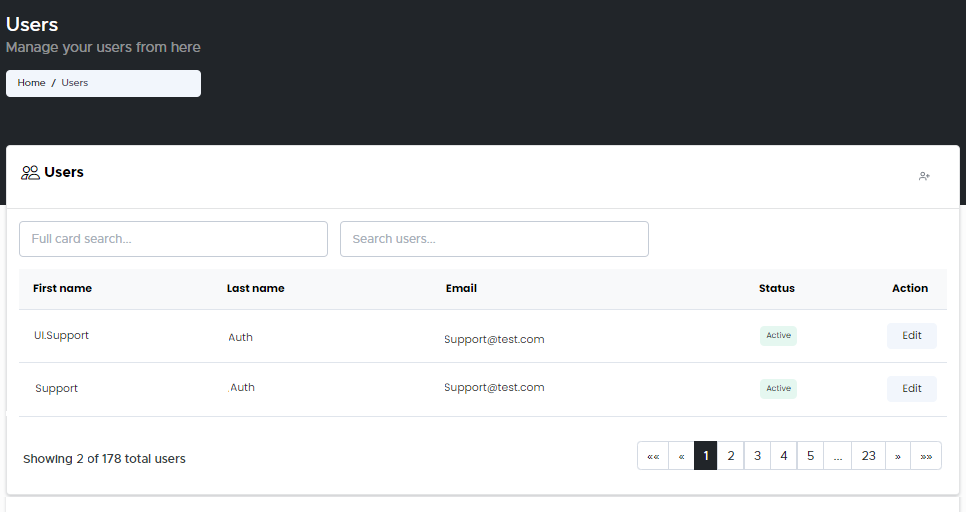
Users - Manage your users from here
In the Search Users field, type the name of the user you want to search and hit Enter. List of the searched users are displayed.
Click Edit to navigate to the Users records. The User’s Account Management window opens displaying the list of Users VeroCards info.
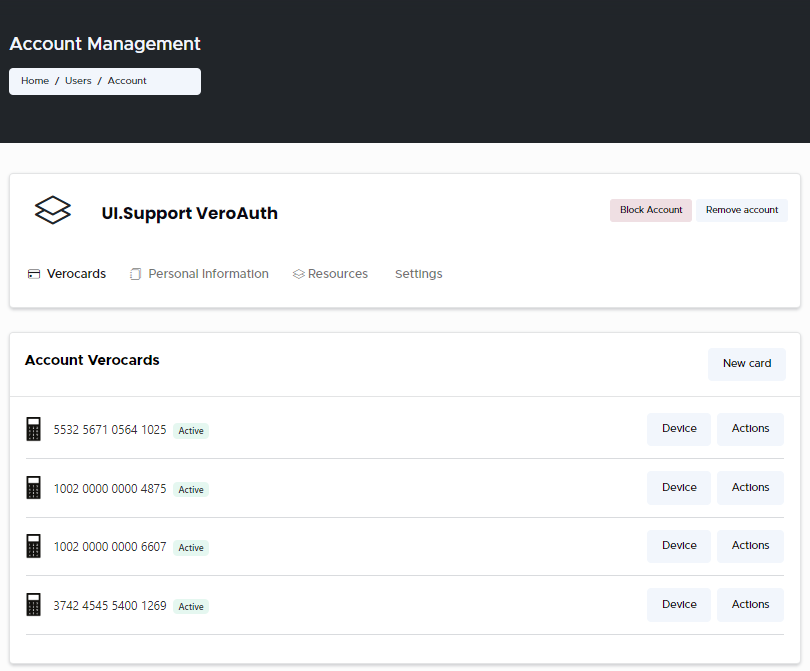
Account Management Page
Go to the Resources tab and click on it. The Resources details page opens up displaying the list of all the existing resources added to the user.
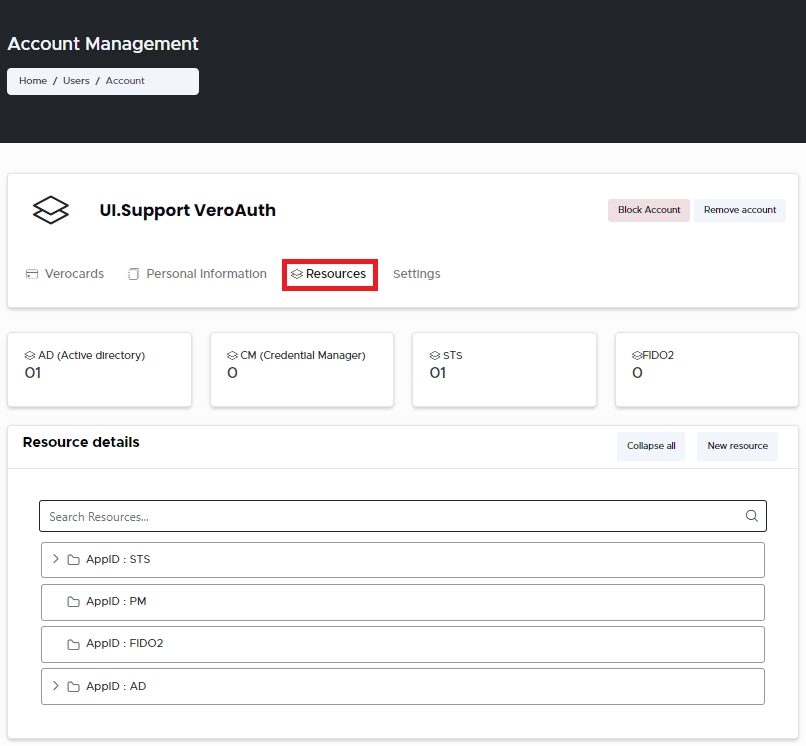
Resource Details page
Expand the Resources you wish to Clear Credentials for. Right-click on the Resource and choose Clear Credentials from the drop-down menu.
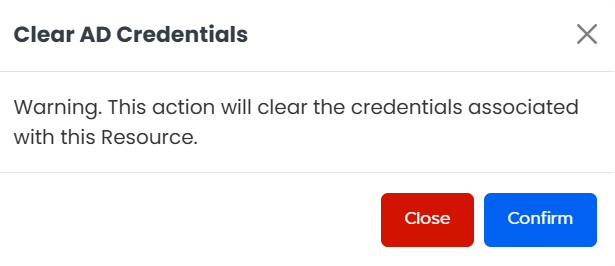
Clear AD Credentials Confirmation
Click Confirm if you wish to proceed with clearing the credential associated with this Resource. A message stating AD Credentials cleared successfully is displayed upon successfully clearing the credentials.