
Logging into a PC with a Keyek Card is similar to the traditional method but uses a PIN instead of a password. Follow these steps to log in using your Keyek Card:
-
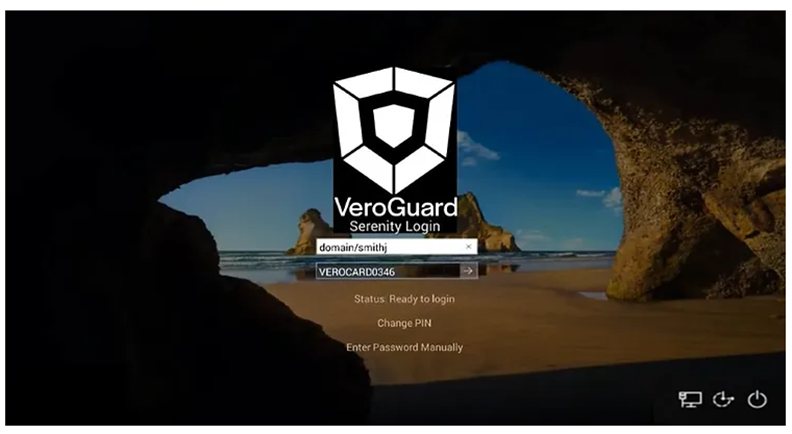
Switch on your Windows 10+ device (PC) as you normally would and wait for the screen to display the logged-in account. The Card Selection Box will show your Keyek Card number or nickname. If the system detects multiple Keyek Cards, select yours from the drop-down.
Keyek will automatically assign a nickname to your Keyek Card after your first log in.
-
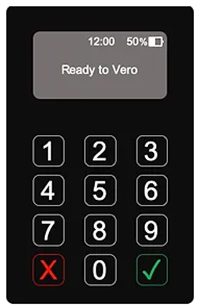
Press the power button on the top left edge of the Keyek Card. Wait a few seconds for it to complete the boot-up process. Once ready, it will display the ready screen.
-
Press Enter or click the arrow icon next to the Keyek Card number on the PC to begin connecting the Keyek Card to the PC. Keyek Card displays the prompt to Enter PIN.
-
Enter your PIN using the Keyek Card keypad and press green tick key. If the validation is successful, the Keyek Card displays the Success message.
The PC screen will update to Welcome and log you in.