
-
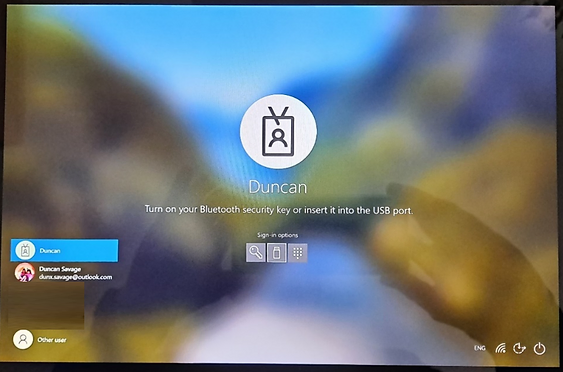
Prepare Your Device: Switch on your device, log out, or return to the lock screen by pressing WIN+L.
-
Select Sign-in Options, on the lock screen.
or
Click FIDO security key icon. You will see a message that prompts you to Turn on your Bluetooth security key or insert it into the USB port.
-
Switch on your Keyek Card: Press the power button on the top left edge of the Keyek Card. Wait a few seconds for it to complete the boot-up process. Once ready, it will display the ready screen. The Windows 10 device will display all available accounts.
-
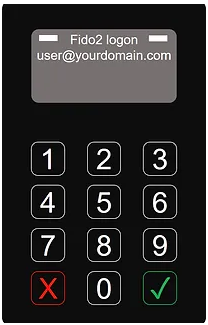
Select Your Account: If multiple accounts exist, use the up/down keys (8/0) on the Keyek Card to select the desired account on the Windows 10 device.
-
Click the green tick key to select the account. The Keyek Card will connect to the PC and prompt you to Enter PIN.
-
Enter your PIN using the Keyek Card keypad and click Enter or press green tick key. If the validation is successful, the Keyek Card displays the Success message.
The PC screen will update to Welcome and log you in.
After completing an online login, the same login process can be used when offline.