
To remove a User Account from the platform through the Admin Portal, an administrator must follow the specific procedure to delete the user’s account or services.
Removing a user will permanently delete any associated information and this operation cannot be undone. This information will be archived for audit purposes.
You can’t remove a user if there is a Keyek Card/s linked to the account. You must unlink any associated Keyek Cards before removing the user.
-
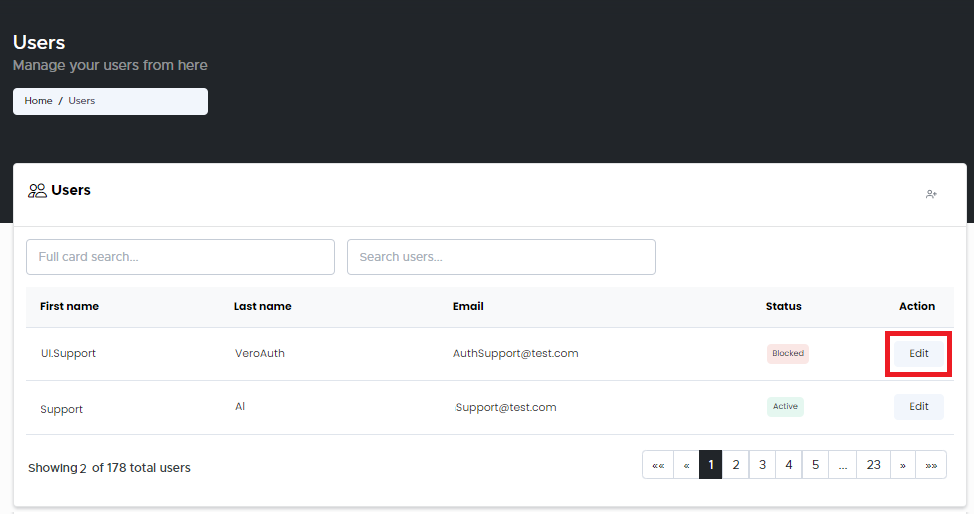
From the Home page, click on Users to open the Users - Manage your Users page displaying the list of existing users.
or
In the Home page, go to the Users option from the left navigational pane and click on it. The
Users - Manage your users from here page opens up displaying the list of existing users.
-
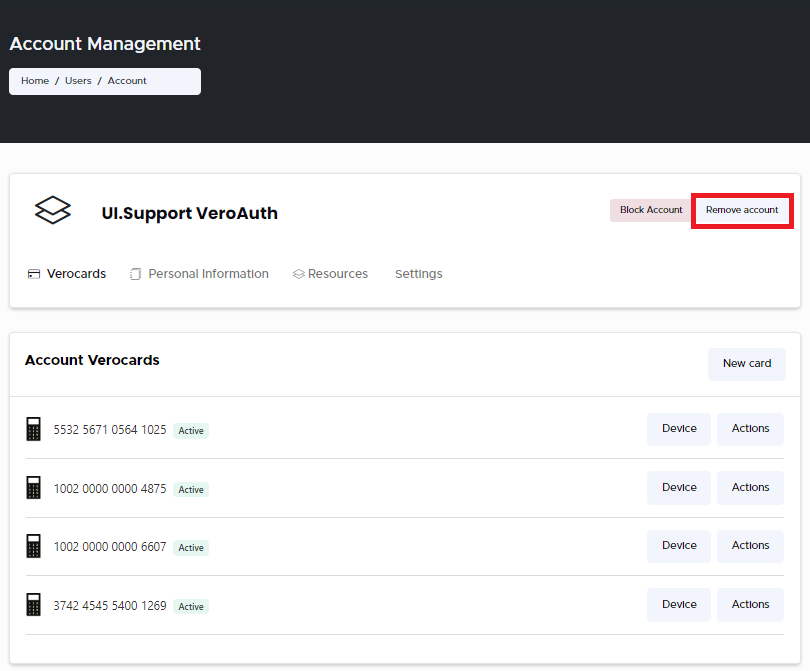
Navigate to (or search for) User you wish to remove and click Edit. The Users Account Management page opens displaying the list of Accounts Keyek Card information.
-
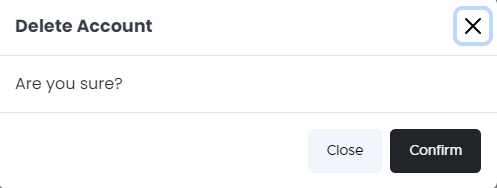
Click Remove Account, if you wish to remove this Account from the portal. The Delete Account confirm window pops-up.
-
Click Confirm. A message confirming the User account has been successfully deleted message is displayed when the action is successfully completed.