
The Users View provides a comprehensive list of all available users within the system, offering a centralised location to manage user accounts efficiently. From this view, administrators can perform a variety of actions:
-
Add User: You can create new user accounts, assign necessary Keyek Cards and Resources during the process to those Users.
-
Edit Existing Users: User Account details such as Keyek Cards, Personal Information, Resources and settings can be modified as needed.
-
Block User Accounts: If a user account needs to be temporarily disabled, you can block it, preventing access without deleting the account.
-
Activate User Accounts: Previously blocked or inactive accounts can be reactivated, restoring the user's ability to access the system.
-
Remove User Accounts: You can permanently delete a user account, typically when the user is no longer part of the organisation or no longer requires access. Removing a user will permanently delete any associated information and this operation cannot be undone. This information will be archived for audit purposes.
The Users View ensures that managing the user base is streamlined and secure, helping to maintain system integrity and control over access.
By clicking on the Users option, the view will display an actionable list of Users associated to the organisation and their high-level status. For example if the Account is Active or Blocked.
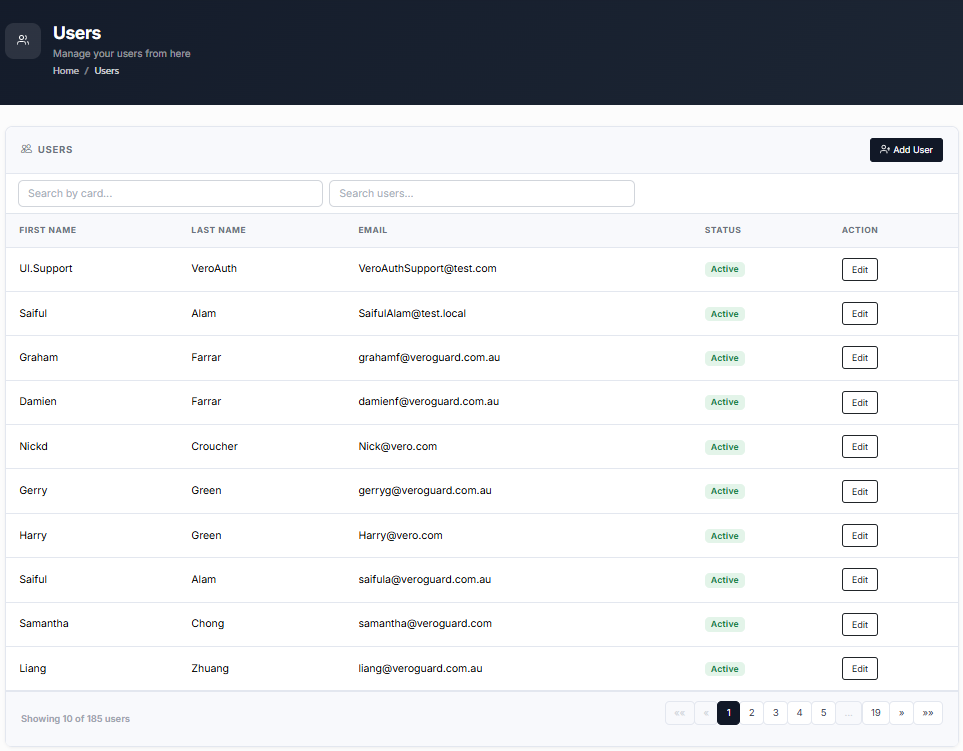
Clicking through on any user record enables user management, including Keyek Cards, Applications and Resources.
The user shown below has 1 Keyek Card associated with their Keyek ID.
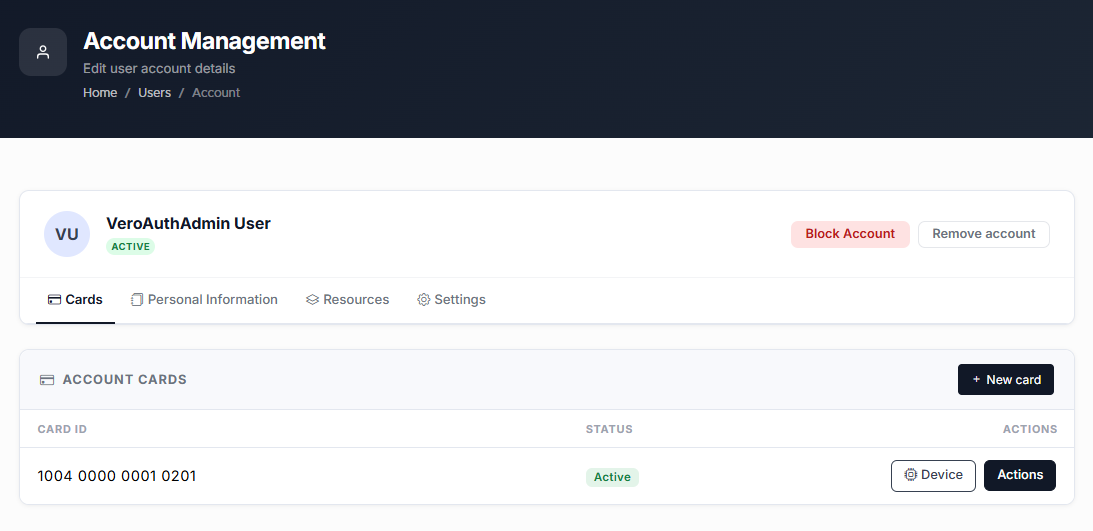
The Admin Portal is designed to manage users from setting them up to ongoing maintenance and support, as well as to drill down into user activity as required. Drilling down into the Keyek Card record provides data on last login, and actions such as PIN fail attempts.