
This action blocks the Keyek Card from being used to login to any systems.
Using the Admin portal, the administrator can identify the User’s account and enforce a block. This block restricts access and disables any associated services.
Blocking is typically implemented to address security issues, prevent fraudulent activities, or enforce policy compliance. Depending on the situation and organisational guidelines, the block can be set as either temporary or permanent.
-
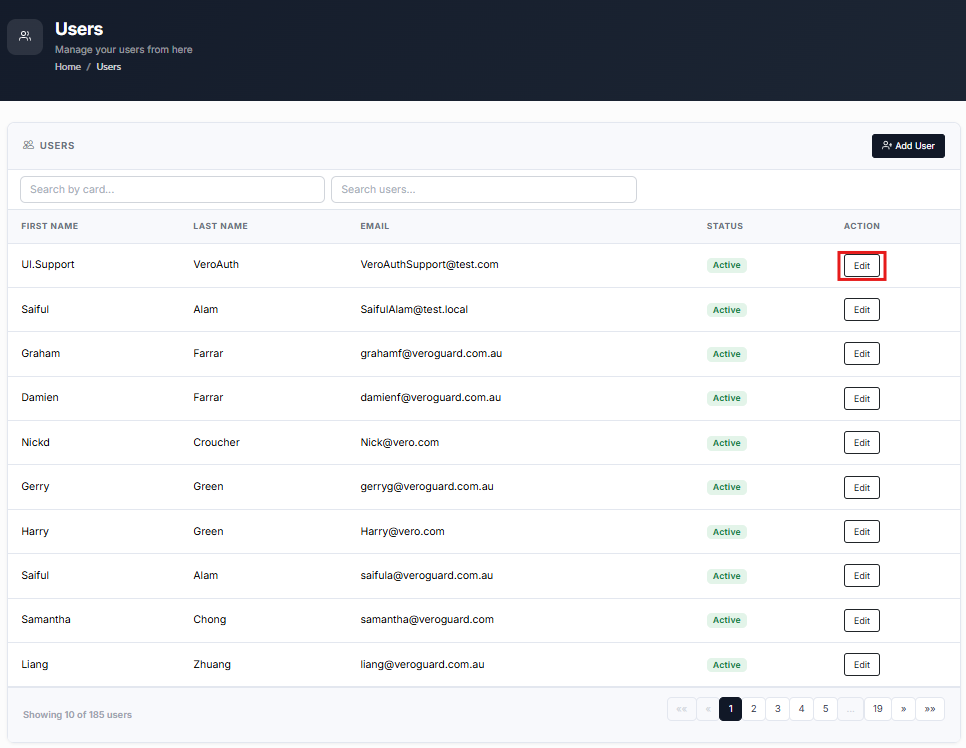
From the Home page, click on Users to open the Users - Manage your Users page displaying the list of existing users.
or
In the Home page, go to the Users option from the left navigational pane and click on it. The
Users - Manage your users from here page opens up displaying the list of existing users.
-
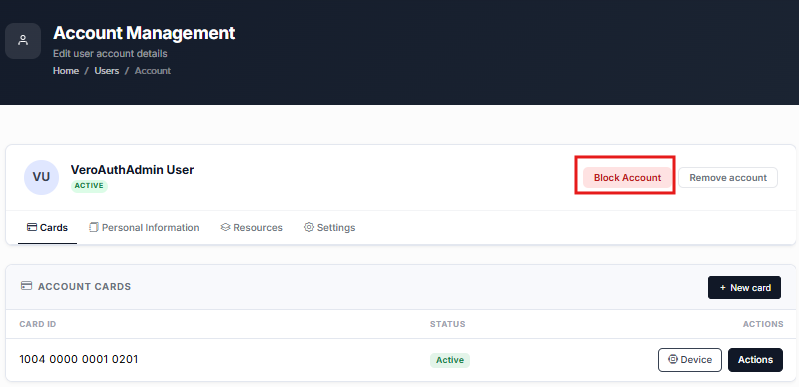
Navigate to the user you want to change and click Edit. The Users Account Management page opens, showing the list of Accounts Keyek Card information.
Account Management
-
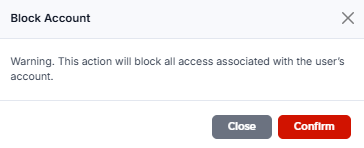
Click Block Account, if you wish to block all access associated with the User’s Account. The Block Account confirm window pops-up.
You can also Block a Resource and Block a Keyek Card. For more information regarding this, refer to Block a Resource and Block a Keyek Card section.
-
Click Confirm. A message confirming the User was blocked successfully message is displayed when the action is completed.