
Using the Admin portal, the administrator can identify the Keyek Card and enforce a block. This block restricts access to systems or devices associated with this Keyek Card.
-
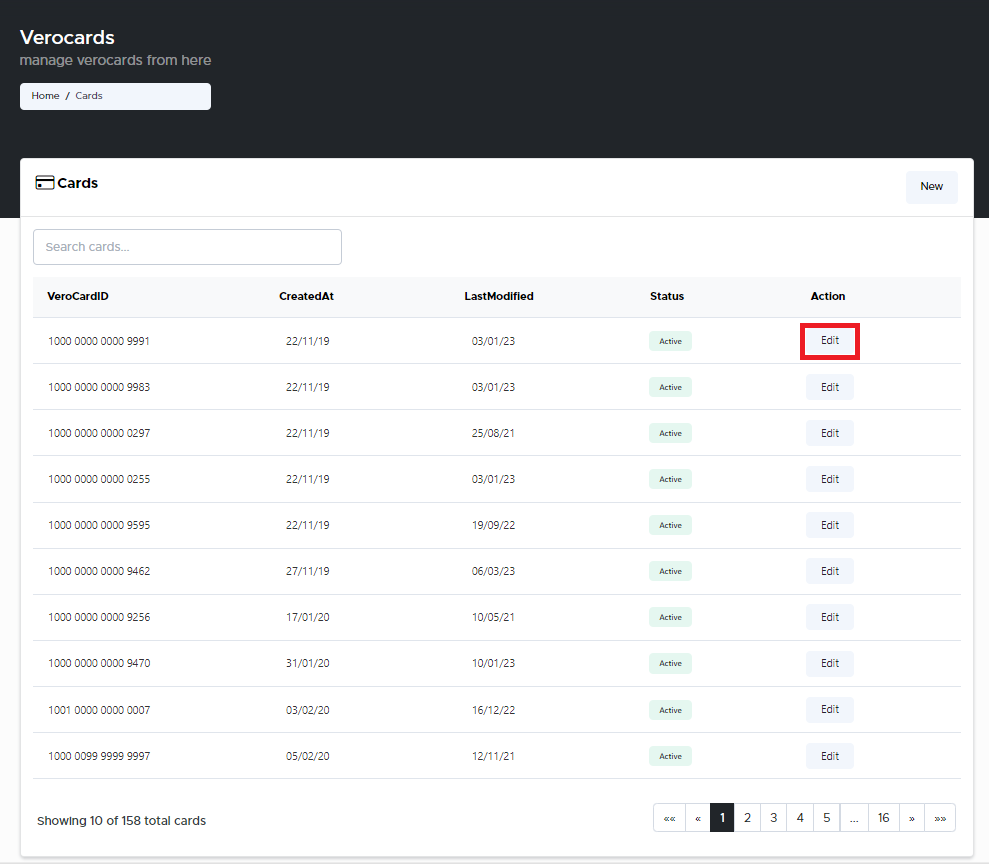
From the Home page, click on Keyek Cards to open the Keyek Cards - Manage Keyek Cards from here page displaying the list of existing cards.
or
In the Home page, go to the Keyek Cards option from the left navigational pane and click on it. The Keyek Cards - Manage Keyek Cards from here page opens up displaying the list of existing cards.
-
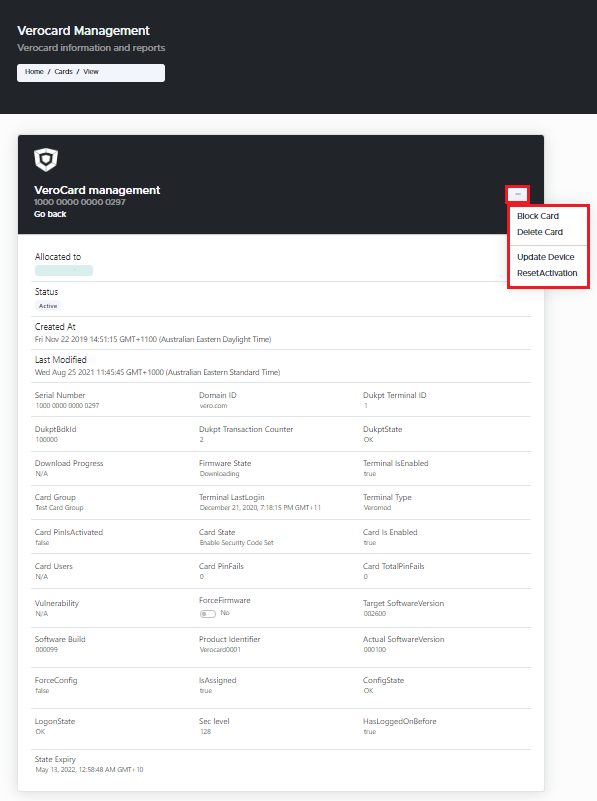
Navigate to the Keyek Card you wish to delete and click Edit. The Keyek Card management window pops-up.
-
Click on the 3 dots on the top right corner of the window.
-
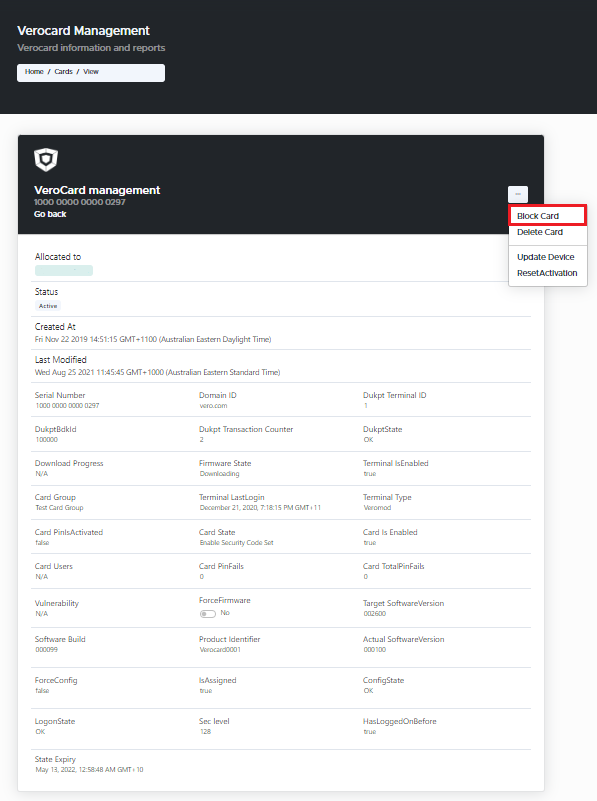
Select Block Card option from the drop-down. The Block Card window pops-up.
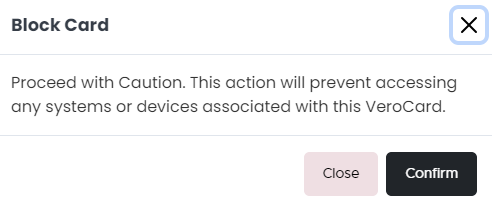
Blocking a Card will prevent accessing any systems or devices associated with this Keyek Card.
-
Click Confirm, if you wish to proceed with blocking the selected Keyek Card. The Card has been successfully blocked.
-
If you do not wish to proceed with blocking the selected Keyek Card, click Close.
-