
Updating the firmware on a Keyek Card device is essential for optimal performance, security, and access to the latest features.
By following these steps below, you can ensure that your Keyek Card device is running on the latest firmware, enhancing its performance and security.
-
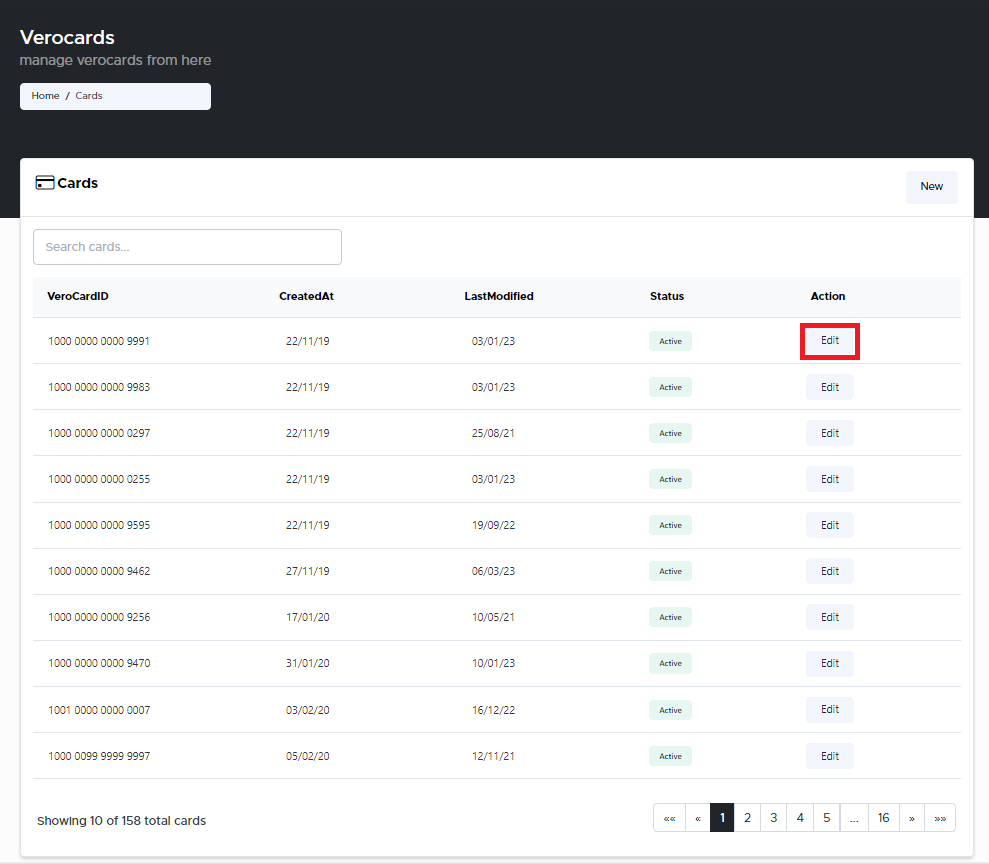
From the Home page, click on Keyek Cards to open the Keyek Cards - Manage Keyek Cards from here page displaying the list of existing cards.
or
In the Home page, go to the Keyek Cards option from the left navigational pane and click on it. The Keyek Cards - Manage Keyek Cards from here page opens up displaying the list of existing cards.
-
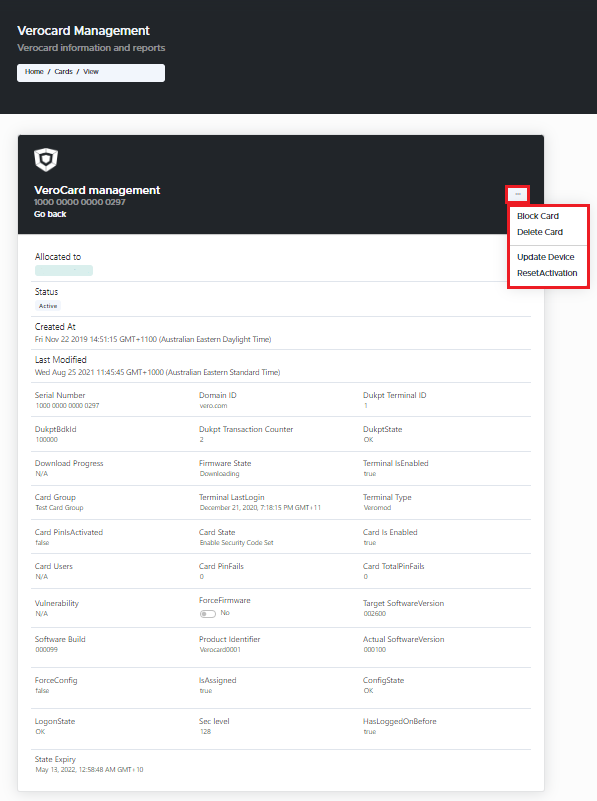
Navigate to the Keyek Card you wish to delete and click Edit. The Keyek Card management window pops-up.
-
Click on the 3 dots on the top right corner of the window.
-
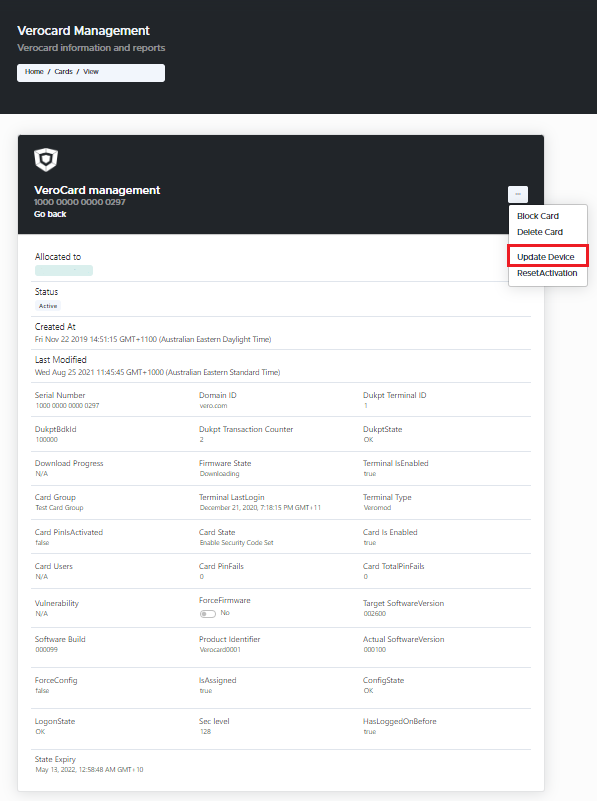
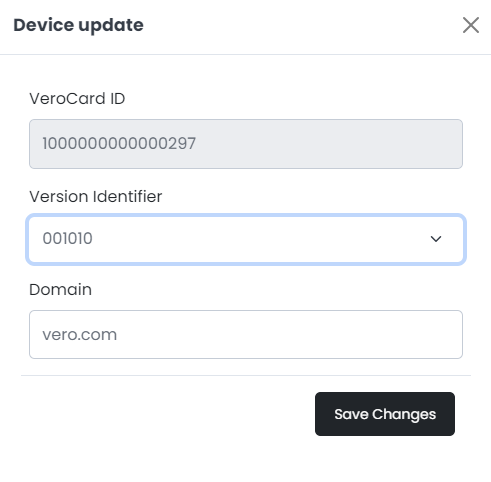
Select Update Device option from the drop-down. The Device update window pops-up.
-
In the Device update window, update the following information:
-
Version Identifier: From the drop-down menu, select the new firmware version you wish to update the device to.
-
Domain: Enter the new Domain information, if you wish to change the domain info for the device.
-
Changing the domain information, may prevent the user from being able to find the card again.
-
Click Save Changes. The Success message window pops-up, displaying that the Keyek Card device has been successfully updated.
-
If you do not wish to proceed with updating the selected Keyek Card, click X to close.
-