
You cannot delete a Keyek Card if it's linked to a user. You must unlink the card from the user first before deleting it.
-
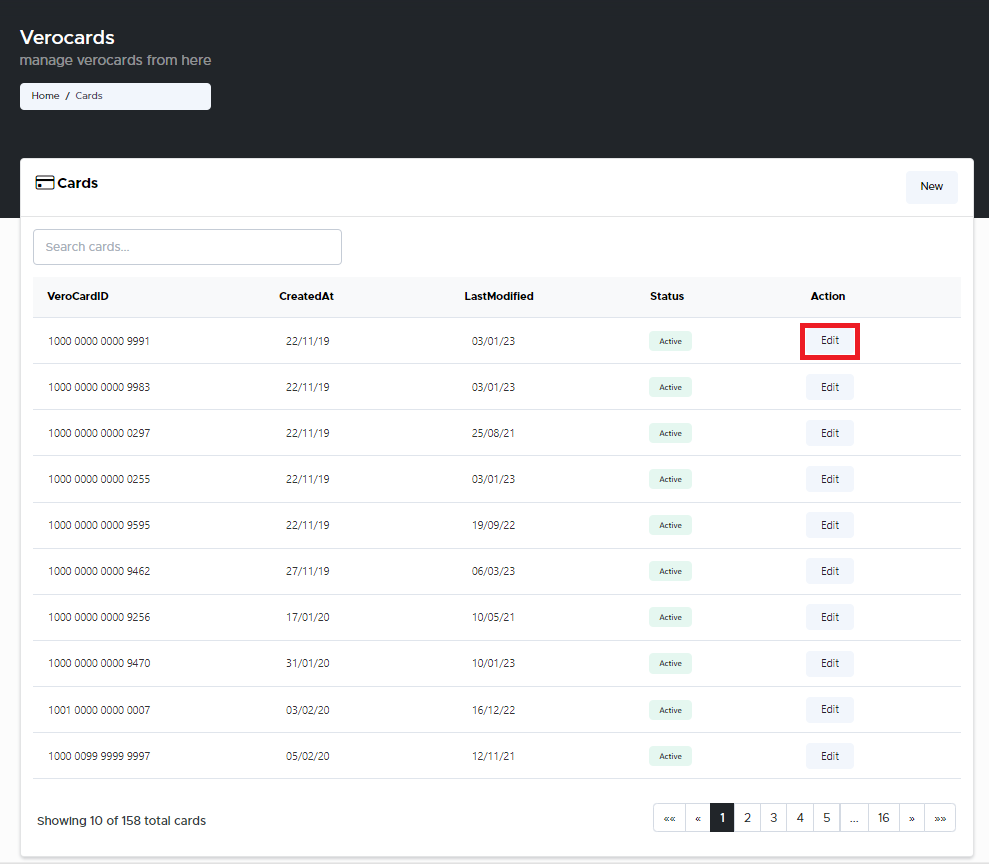
From the Home page, click on Keyek Cards to open the Keyek Cards - Manage Keyek Cards from here page displaying the list of existing cards.
or
In the Home page, go to the Keyek Cards option from the left navigational pane and click on it. The Keyek Cards - Manage Keyek Cards from here page opens up displaying the list of existing cards.
-
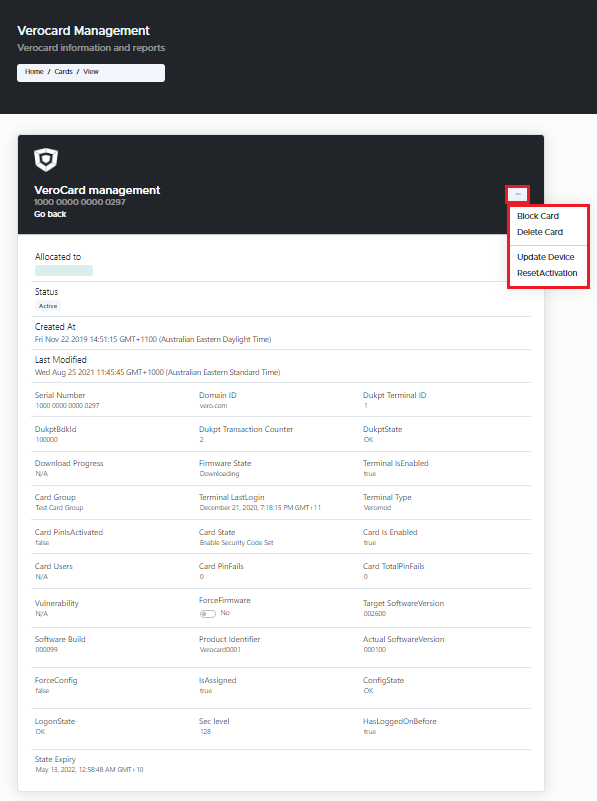
Navigate to the Keyek Card you wish to delete and click Edit. The Keyek Card management window pops-up.
-
Click on the 3 dots on the top right corner of the window.
-
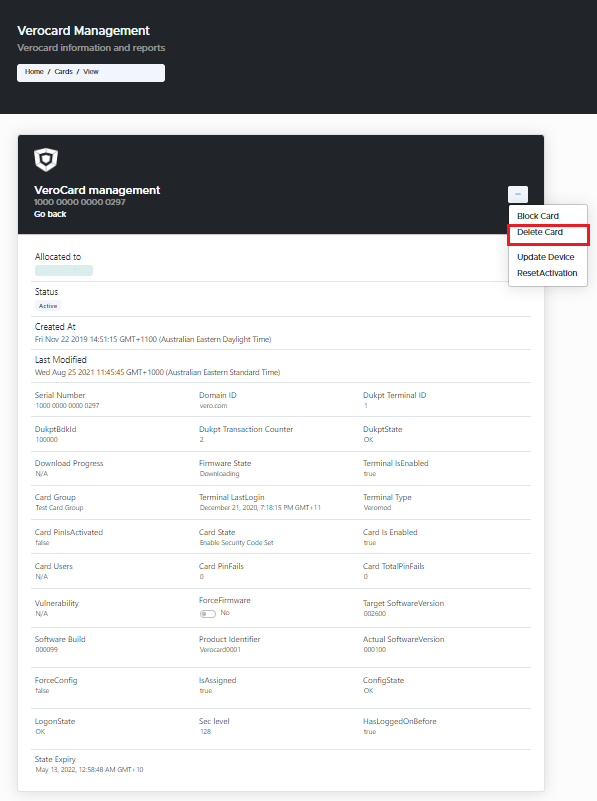
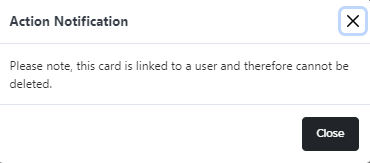
Select Delete Card option from the drop-down option. The Action Notification window pops-up.
-
If the Keyek Card is linked to a user, then the Action Notification window pops-up displaying the message that the Keyek Card selected is linked to the user and therefore cannot be deleted. Click Close. Follow the steps to unlink the user from the Keyek Card and then attempt to delete the Keyek Card.
-
If the Keyek Card is not linked to a user, then Delete card window pops-up. Click Confirm, if you wish to continue to delete the selected card. The card has been successfully deleted.