
Register your Keyek Card to your "Sign in" account
This final setting requires the end user to login to their Microsoft account online and add the Keyek Card as a security device to their profile.
-
Browse to https://mysignins.microsoft.com and sign-in (if not already) with your Windows Username and Password.
You will be required to setup at least Azure AD Multi-Factor Authentication method (if you do not already have one) before you can register a FIDO2 security key.
-
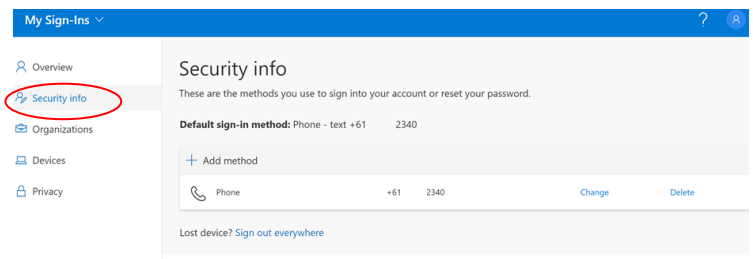
Click Security Info.
If the user already has at least one Azure AD Multi-Factor Authentication method registered, they can immediately register a FIDO2 security key. If they do not have at least one Azure AD Multi-Factor Authentication method registered, they must add one.
-
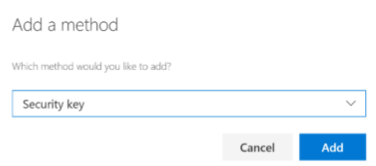
To add a FIDO2 Security key, click Add method. The Add a method screen opens up.
-
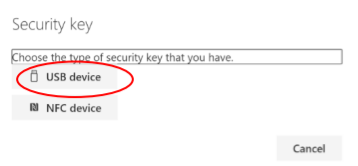
From the Which method would you like to add menu, choose Security key and click Add. The Security key window opens up.
-
Click on Choose the type of security key that you have menu. From the drop-down choose USB device.
This will try both USB and Bluetooth BLE that supports Keyek Card.
-
Make sure your Keyek Card is turned on and ready and choose Next. The browser will connect with and register the device against your account.
-
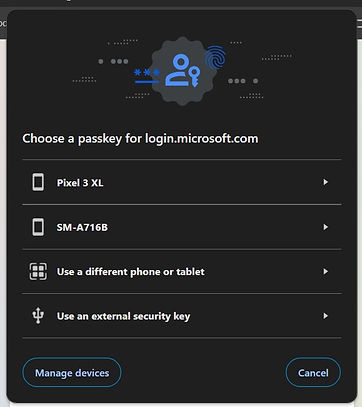
From the popup window choose Use an external security key. Windows will then display 2 pop up messages for you to confirm - Click Ok on both.
-
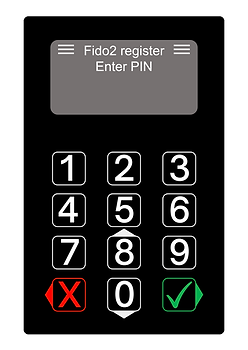
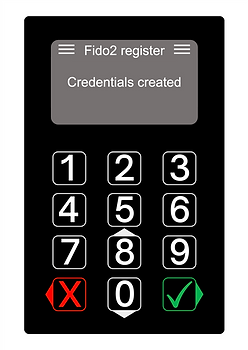
Once the PC connects to the Keyek Card it will display Fido2 Register and you will be prompted to Enter PIN. Enter your PIN and press the Green Tick.
-
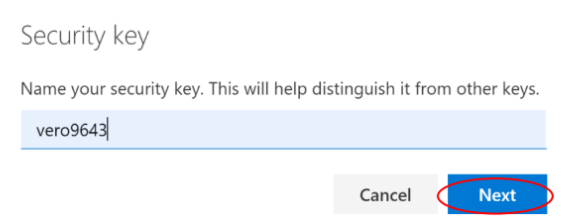
On success, the user will be returned to the combined registration experience and asked to provide a meaningful name for the key so the user can identify each if they have multiple.
-
The user will be returned to the combined registration experience and asked to provide a meaningful name for the key so the user can identify each if they have multiple. Click Next.
-
Click Done and complete the process.
10. Your Keyek Card is now ready to use for login. Login to your Azure AD connect network Device.